
Microsoft Agent Framework を利用することで、AIエージェントのどのステップに時間がかかったのか(レイテンシ)、どれだけトークンを消費したのか(コスト)、どこで失敗したのかを継続的に把握することができます。
Microsoft Agent Framework には OpenTelemetry ベースの可観測性(Observability)が組み込まれており、エージェント/Workflow の実行をトレース(スパン)・ログ・メトリクスとして出力できます。
本記事では、ローカル環境でトレースを確認し、処理フローの追跡やトークン・レイテンシを計測する方法を記載します。
実行環境
- OS:Windows 11 + WSL2(Ubuntu 22.04)
- Python:3.12
- Microsoft Agent Framework:agent-framework 1.0.0b260128
- Docker:WSL上の Docker Engine(Docker Desktop 不使用)
環境変数
今回の記事では、Azure OpenAI のリソースを利用します。以下の環境変数を設定します。
AZURE_OPENAI_ENDPOINT="https://<リソース名>.openai.azure.com/"
AZURE_OPENAI_CHAT_DEPLOYMENT_NAME="<デプロイメント名>"
AZURE_OPENAI_RESPONSES_DEPLOYMENT_NAME="<Magenticで利用するデプロイメント名>"

# observability
ENABLE_INSTRUMENTATION=true # Agent FrameworkのOpenTelemetry計測(トレース/ログ/メトリクス)を有効化
OTEL_EXPORTER_OTLP_ENDPOINT=http://localhost:4317 # OTLPエクスポーターの送信先(例:Aspire DashboardのOTLP受信ポート)
OTEL_SERVICE_NAME=agent-framework-magentic # テレメトリ上のサービス名(ダッシュボードで識別しやすくする)
Microsoft Agent Framework の Observability
Microsoft Agent Framework のObservability は、エージェントやワークフローの実行状況をトレース/ログ/メトリクスとして記録し、「どこで時間がかかったか」「どのExecutorで失敗したか」「メッセージがどう流れたか」を後から追うことを可能にします。
Agent Framework は OpenTelemetry と統合されており、OpenTelemetry GenAI セマンティック規則に沿ったテレメトリ(例:モデル呼び出しやトークン使用量)に加えて、Workflow実行向けの追加スパンを出力します。これにより、単に“LLM呼び出しが遅い/高い”だけでなく、ワークフロー内のExecutor単位の性能や、ルーティングの流れ(メッセージング)まで可視化できます。
詳細は以下のリンクをご参照ください。
実装
今回は、前回Microsoft Agent Frameworkで作るマルチエージェント:Workflow(静的フロー)× Magentic(動的オーケストレーション) - JBS Tech Blogで紹介した、Magentic(オーケストレーション)の処理を可視化します。
基本的な構成は前回と同じです(Researcher/Coder/Manager の3エージェントを MagenticBuilder で組み、run_stream() で実行)。一部、Agent Framework の更新に伴い、イベントの取り扱い方など一部の API が変更されています。
サンプルコード
以下のコードは、ResearcherAgent(調査)とCoderAgent(計算・コード実行)を用意し、タスクを分担します(CoderはHostedCodeInterpreterToolを利用可能)。
MagenticManagerが進捗に応じて次に動かすエージェントを選び、指定した上限回数などの範囲で協調して処理を進めます。
本コードでは、まず configure_otel_providers() によりOpenTelemetryの計測を有効化し、Magentic実行中のトレース/ログ/メトリクスを外部(例:Aspire Dashboard)へ送れるようにしています。実行は workflow.run_stream(task) を使い、次の形で実行中の様子と最終出力を段階的に追えるようになっています。
- AgentRunUpdateEvent:各エージェント(executor)からのストリーミング出力を表示
- MagenticOrchestratorEvent:マネージャー側の進捗イベント(例:MagenticProgressLedger)を受け取り、計画や進捗をJSONで確認
- WorkflowOutputEvent:最終結果(ChatMessage の配列)を受け取り、最後のメッセージを出力
import json
import asyncio
from typing import cast

from agent_framework import (
    AgentRunUpdateEvent,
    ChatAgent,
    ChatMessage,
    HostedCodeInterpreterTool,
    MagenticBuilder,
    MagenticOrchestratorEvent,
    MagenticProgressLedger,
    WorkflowOutputEvent,
)
from agent_framework.azure import AzureOpenAIChatClient, AzureOpenAIResponsesClient
from agent_framework.observability import configure_otel_providers
from azure.identity import AzureCliCredential


async def main():
    # --- Observability (OpenTelemetry) ---
    # Uses standard OTEL_* env vars (recommended)
    # e.g.
    #   export ENABLE_INSTRUMENTATION=true
    #   export OTEL_EXPORTER_OTLP_ENDPOINT=http://localhost:4317
    # Optional:
    #   export OTEL_SERVICE_NAME=agent-framework-magentic
    configure_otel_providers()

    # Azure CLI で事前にログインしておく
    # az login
    credential = AzureCliCredential()

    # Azure OpenAI クライアント(Agent Framework)
    chat_client = AzureOpenAIChatClient(credential=credential)
    responses_client = AzureOpenAIResponsesClient(credential=credential)

    # Specialist agents
    researcher_agent = ChatAgent(
        name="ResearcherAgent",
        description="Specialist in research and information gathering",
        instructions=(
            "You are a Researcher. You find information without additional computation."
        ),
        # 検索系モデル/デプロイを使う想定(環境側で対応するデプロイを設定)
        chat_client=chat_client,
    )

    coder_agent = ChatAgent(
        name="CoderAgent",
        description="Writes and executes code to analyze data.",
        instructions="You solve questions using code.",
        chat_client=responses_client,
        tools=HostedCodeInterpreterTool(),
    )

    # Manager agent
    manager_agent = ChatAgent(
        name="MagenticManager",
        description="Orchestrator that coordinates specialist agents",
        instructions="You coordinate a team to complete complex tasks efficiently.",
        chat_client=chat_client,
    )

    workflow = (
        MagenticBuilder()
        .participants([researcher_agent, coder_agent])
        .with_manager(
            agent=manager_agent,
            max_round_count=6,
            max_stall_count=2,
            max_reset_count=1,
        )
        .build()
    )

    task = await asyncio.to_thread(
        input,
        "Task (blank for default): ",
    )
    if not task.strip():
        task = "Compare pros/cons of two approaches and compute a small example with code."

    # Keep track of the last executor to format output nicely in streaming mode
    last_message_id: str | None = None
    output_event: WorkflowOutputEvent | None = None

    async for event in workflow.run_stream(task):
        if isinstance(event, AgentRunUpdateEvent):
            message_id = event.data.message_id
            if message_id != last_message_id:
                if last_message_id is not None:
                    print("\n")
                print(f"- {event.executor_id}:", end=" ", flush=True)
                last_message_id = message_id
            print(event.data, end="", flush=True)

        elif isinstance(event, MagenticOrchestratorEvent):
            print(f"\n[Magentic Orchestrator Event] Type: {event.event_type.name}")
            if isinstance(event.data, MagenticProgressLedger):
                print(
                    "Please review progress ledger:\n"
                    + json.dumps(event.data.to_dict(), indent=2)
                )
            else:
                print(f"Unknown data type in MagenticOrchestratorEvent: {type(event.data)}")

            # Block to allow user to read the plan/progress before continuing
            # Note: this is for demonstration only and is not the recommended way to handle human interaction.
            # Please refer to `with_plan_review` for proper human interaction during planning phases.
            await asyncio.get_event_loop().run_in_executor(None, input, "Press Enter to continue...")

        elif isinstance(event, WorkflowOutputEvent):
            output_event = event

    if output_event is not None:
        output_messages = cast(list[ChatMessage], output_event.data)
        if output_messages:
            output = output_messages[-1].text
            print(output)


if __name__ == "__main__":
    asyncio.run(main())
Aspire Dashboard での可視化
結果は WSL 上で実行した、Aspire dashboard で確認します。
以下の手順を実行します。
1. Aspire Dashboardを起動(WSL上のDocker)
# Pull and run the Aspire Dashboard container
docker run --rm -it -d \
    -p 18888:18888 \
    -p 4317:18889 \
    --name aspire-dashboard \
    mcr.microsoft.com/dotnet/aspire-dashboard:latest
2. Observability 用の環境変数を設定
export ENABLE_INSTRUMENTATION=true
export OTEL_EXPORTER_OTLP_ENDPOINT=http://localhost:4317
# 任意(識別しやすくする)
export OTEL_SERVICE_NAME=agent-framework-magentic
3. コードの実行
4. ダッシュボードで確認
http://localhost:18888 にアクセスし、ログイン画面を開きます。
ログイントークンは docker logs aspire-dashboard で確認できます。ログ内に login?t=
実行結果
コンソールでは、計画や進捗と最終的な回答が表示されます。中間部分は省略しています。
※以下の本文はエージェントの生成結果であり、内容は参考情報です。
Task: Microsoft agent frameworkのobservabilityの説明をしてください。

[Magentic Orchestrator Event] Type: PLAN_CREATED
Unknown data type in MagenticOrchestratorEvent: <class 'agent_framework._types.ChatMessage'>
Press Enter to continue...

...

MicrosoftのAgent Framework(特にBot Framework)における「observability」とは、ボットの内部状態や動作を外部のログやメトリクス、トレース情報などから把握できる能力を指します。これによって、開発者や運用者はボットの動作状況をリアルタイムに監視し、問題の原因を特定したり、性能改善やユーザー体験の向上を図ったりできます。

具体的には、MicrosoftのBot Frameworkでは以下のような観点でobservabilityが実現されています。

1. **ログ(Logging)**
 ユーザーからのメッセージ受信や送信、処理過程で発生した例外やシステムイベントなどをログとして記録。Bot SDKの`ILogger`などを使い、適切なレベル(情報、警告、エラー)でログ出力を行います。

2. **トレース(Tracing)**
 ボット内部での処理の流れやミドルウェアの動作、外部API呼び出しの状態など詳細な診断情報を記録。Application Insightsのトレース機能などを用いて、問題解析やパフォーマンスボトルネックの検出に役立てます。

3. **メトリクス(Metrics)**
 会話ターン数、ユーザーセッション数、応答速度、外部サービス呼び出しの成功率など、定量的なデータを収集。Azure MonitorやApplication Insightsによって可視化・分析可能で、アラート設定などにも活用できます。

Microsoftは特にAzure上で動作するBotに対して「Azure Application Insights」の利用を推奨しており、Bot Framework SDKにはApplication Insightsとの連携が組み込まれているため、最小限の設定で効果的にobservabilityを実装可能です。

まとめると、Microsoft Agent Frameworkのobservabilityは、ログ・トレース・メトリクスを通じてボットの状態を把握し、問題検知やパフォーマンス最適化に活かすための仕組みと実践と言えます。これにより、ボットの信頼性とユーザー体験の向上が期待できます。
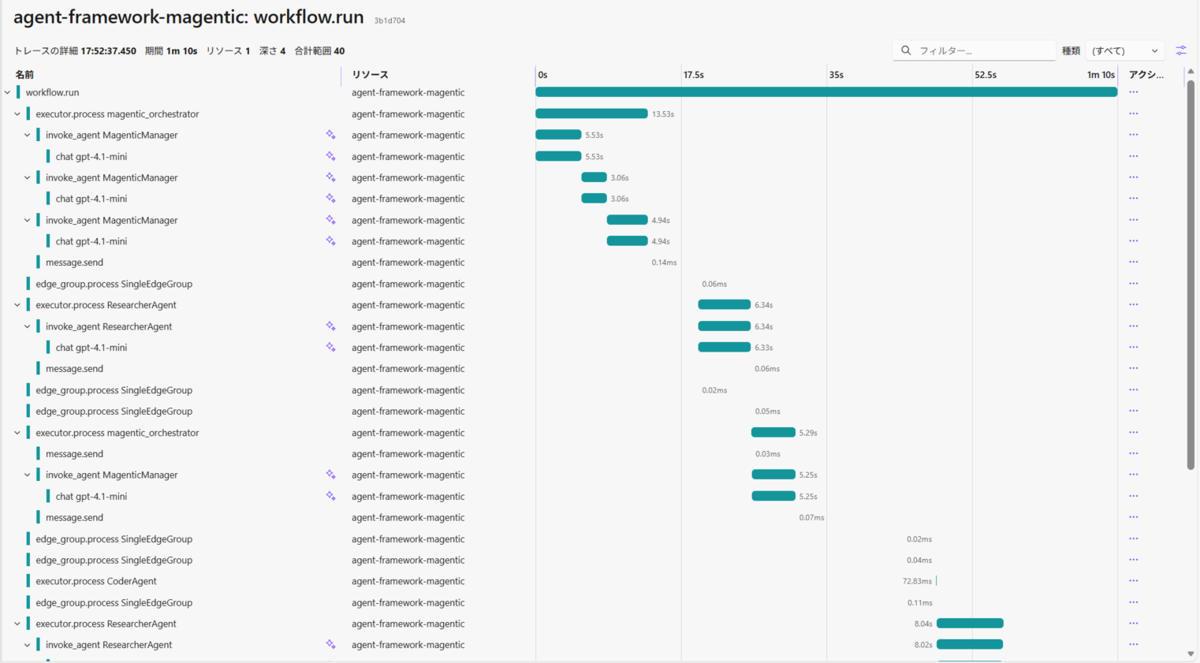
Aspire Dashboard(Traces)では、ワークフロー全体〜各エージェント呼び出しまでが1つのトレースとして可視化されます。
- workflow.run:Magenticワークフロー全体の実行時間
- executor.process
:MagenticManager / ResearcherAgent / CoderAgent それぞれの処理時間と実行順 - invoke_agent
/ chat :LLM呼び出し単位のレイテンシ(どこで時間を使っているか) - message.send / edge_group.process:エージェント間のメッセージ送信・ルーティングの流れ
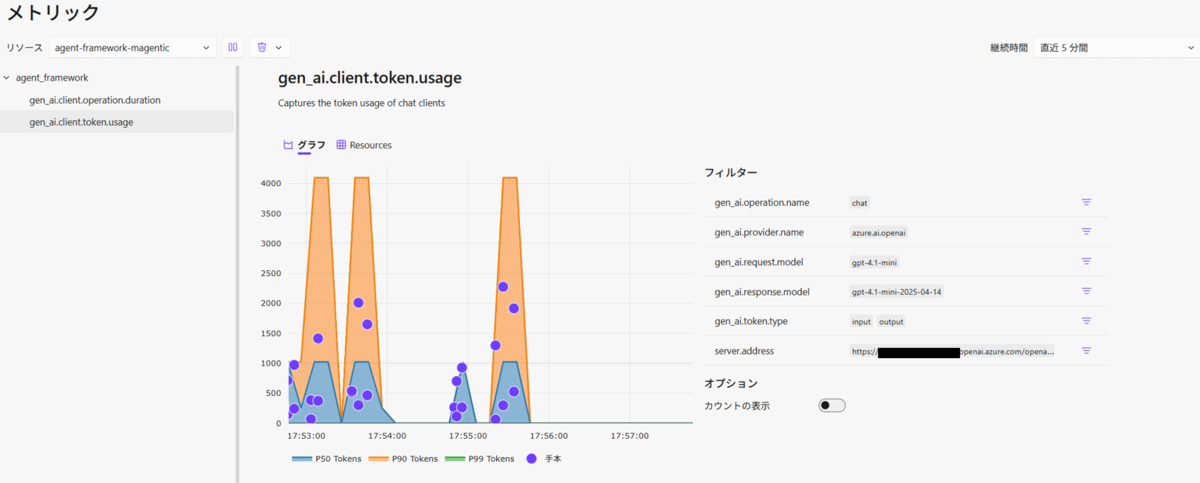
また、トークン利用量も確認が可能です。
最後に
本記事では、Microsoft Agent Framework の Observability(OpenTelemetry)を有効化し、Aspire Dashboard を使ってローカル環境で Magentic/Workflow の処理フローをトレースとして可視化する手順を紹介しました。
workflow.run や executor.process で、実行全体と各エージェント(Executor)の所要時間を追えます。chat
今後は、Azure Monitor / Application Insights などに送ってクラウド環境でも実行状況を確認できるようにすることも試したいです。また、Workflowのメッセージの流れや各ステップの所要時間を手がかりに、どこがボトルネックかを継続的に見直していきたいです。